An interactive map and planning tool for The Last Caretaker, built with Electron.

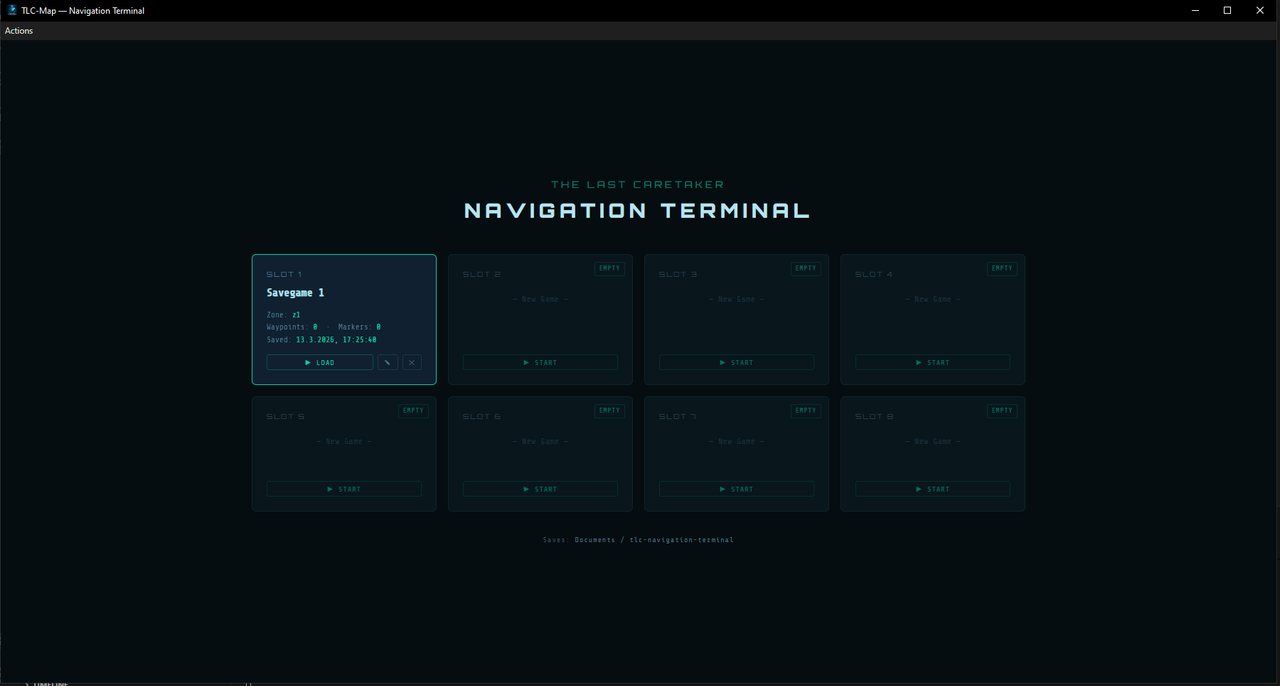
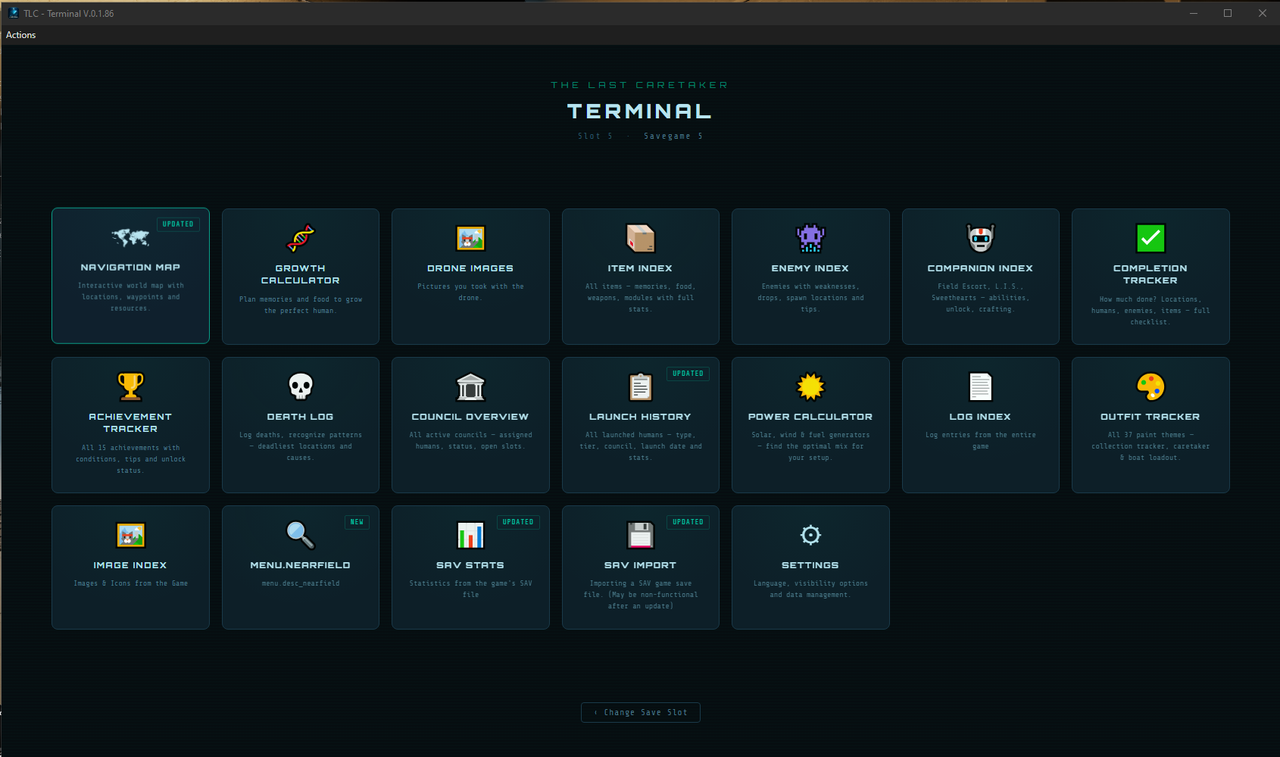
- Save Slot Selection — Up to 8 independent save slots, each with its own map state and settings
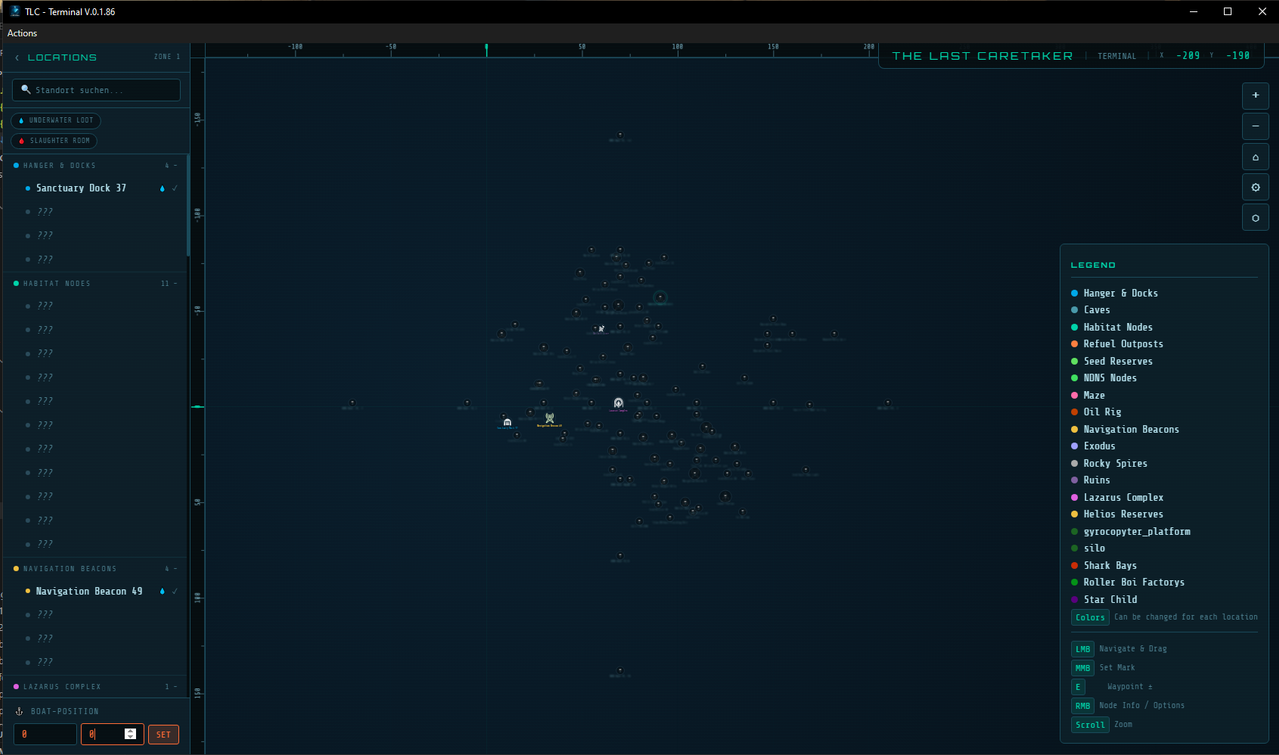
- Interactive Map — Navigate all stations and locations with drag, zoom and fog of war
- Location Info — Resources, enemies, notes, buildings and collectible items per location
- Waypoints & Markers — Set color-coded map markers and navigate with
E - SAV Auto-Import — Reads your game save file automatically and updates the map with tank levels, visited locations, quests, outfits, launch history and more
- Near-Field Search — Shows all collectible items near your boat position from the save file
- Waypoint System (Mod) — Real-time boat tracking and in-app waypoint setting via the TerminalWaypoint UE4SS mod
- Human Growth Calculator — Plan which memories and food to use, track inventory, auto-allocate required items
- Launch History — Log and track every human launched to space with full stats, tier, profession and council assignment
- SAV Stats — Overview of tanks, structures, quests and inventory read from the save file
- Hotkeys & Stream Deck — Bind keyboard shortcuts or Stream Deck buttons to trigger imports and navigation
No Node.js required. Just download and run:
- Download the
.exeinstaller - Run and install
- Launch the app — done
| Input | Action |
|---|---|
| Left Mouse + Drag | Pan map |
| Scroll | Zoom in / out |
| Right Mouse | Location info & options |
| Middle Mouse | Place marker |
E |
Place waypoint at cursor |
The app can read your game save file to automatically update tank levels, visited locations, quest progress, outfits, launch history and more.
Click ⚙ Settings from the main menu, then open the SAV Import section.
Enter the path to your Voyage install folder, or click 🔍 Scan to detect it automatically. The app looks for save files at:
<GameFolder>\Voyage\Saved\SaveGames\
The app matches the active slot in the app to the correct .sav file automatically. Switch slots with the Change Slot button on the start screen.
Set the polling interval (default: 30 seconds). Enable the data categories you want imported automatically:
| Option | What it imports |
|---|---|
| Locations | Visited status for all map locations |
| Tanks | Fuel, water, gas and battery levels per location |
| Structures | Buildings counted at each location |
| Quests | Completed quest flags |
| Logs | Collected log entries |
| Outfits / Paints | Found paint schemes |
| Humans | New human launches added to Launch History |
If you want to point to a specific .sav file instead of the auto-detected one, click Browse under Manual SAV Path. This is useful if you copy saves manually or use a non-standard install path. Near-Field Search and the hotkey import both use this path when set.
Click ✓ Save SAV Settings. The auto-importer starts immediately and runs in the background.
Bind a hotkey under ⌨ Keyboard Shortcuts (e.g. Ctrl+Shift+I) to trigger an instant import at any time without leaving the game.
Near-Field Search reads your current save file and shows all collectible items near your boat (player -> mod required) — memories, loot, materials, and more — grouped by type and sorted by distance.
- In Settings → SAV Import, enable Near-Field Search Active
- Optionally enable Exclude Chest Items to hide items already stored in containers
- Set a Manual SAV Path if you want to point to a specific save file
- Click ✓ Save SAV Settings
- Open 🔍 Near-Field Search from the main menu
- The app reads your save file and lists all world-collectible items within range of your boat
- Items are shown with their asset name, type and distance
- Right-click any item to open options — if the Waypoint System is active, you can select Add to Navigation to set a waypoint directly to that item on the map
The search updates every time you open the panel or trigger a manual import. For live updates while playing, use it together with the Waypoint Mod.
The Waypoint System connects the app to a UE4SS Blueprint mod & Lua mod running inside the game. It provides:
- Live boat position on the map, updated every 10 seconds
- Live Player position for the Near-Field-Search, updated every 10 seconds (refresh the search to updtae the position)
- In-app waypoint setting — right-click any location or Near-Field item and send a waypoint directly to the game's navigation compass
- UE4SS installed for The Last Caretaker
- The TerminalWaypoint Blueprint mod placed at:
The mod writes and reads a
<GameFolder>\Voyage\Binaries\Win64\ue4ss\Mods\waypoint.jsonfile inside the mod folder.
- Open ⚙ Settings
- Scroll to the 🧭 Waypoint System section
- Check Activate Waypoint
- Click 📂 Search and select the
waypoint.jsonfile at the path shown:…\Voyage\Binaries\Win64\ue4ss\Mods\TerminalWaypoint\waypoint.json - Click 🔍 Test JSON to verify the connection — the status line will confirm whether the mod is responding
- Click Save
Once activated, the app polls waypoint.json every 5 seconds (mod writing all 5 seconds):
- Boat position is read from
BoatPosand shown as a moving marker on the map - Player position is read from
PlayerPosfor the Near-Field-Search, updated every 10 seconds (refresh the search to updtae the position) - Setting a waypoint: Right-click any item → Add to Navigation in Near-Field Search. The app writes the target coordinates to
waypoint.jsonwithRequest_1 1andIsWaypointActive_1: true, which the in-game mod picks up and activates on the compass - Set waypoint: Right-click or press E on any object or location on the map → Add Waypoint. The app writes the target coordinates—along with
Request_2 1andIsWaypointActive_2: true—to thewaypoint.jsonfile; the in-game mod picks up this data and activates the waypoint on the compass. - Clear Navigation: right-click the map → Clear Waypoint, or use the waypoint itself by clicking on it.
- Clear Navigation: in the Nearfieldsearch right-click the item → Clear Waypoint, or use the button in the richt top corner
When the Waypoint System is active, the SAV Auto-Import skips overwriting boat position so the live mod position is always used instead.
Track every human launched to space with full stats imported from the save file.
Humans are imported automatically via SAV Import (enable the Humans option). Each record includes:
- Profession & Tier — derived automatically from the job (e.g. Teacher → Tier 2 Educator, Quantum Engineer → Tier 4 Engineer)
- Physical stats — Life Expectancy, Height, Weight, Intellect, Strength
- Mental traits — Patience, Wisdom, Communication, Leadership, Discipline, Logic, Adaptability, Empathy
- Birth date — when the human was grown (from save)
- Launch date — when they were delivered (from save)
Fields not stored in the save file — Name, Council assignment, Days in Space, Value, Mutation — can be filled in manually via the edit form.
Open 📋 Launch History from the main menu. Tabs:
| Tab | Content |
|---|---|
| Timeline | All launches sorted newest first, with full stat display |
| Councils | Humans grouped by their assigned council |
| Stats | Averages, tier distribution, profession and council breakdowns |
| Add | Manual entry form |
Open via 🧬 in the toolbar or from the main menu.
- Inventory Tab — Track how many memories and food items you own
- Available Humans Tab — Browse all growable types filtered by tier; green glow = growable now
- Right-click a card to mark as Owned or To Grow
- Click a card for the detail view with auto-allocation of required items
All app data is saved automatically to:
~/Documents/tlc-navigation-terminal/
Use Settings → Export to back up your data, or Import to restore it.
| Package | Purpose |
|---|---|
electron |
Desktop app framework |
electron-store |
Persistent state storage |
electron-squirrel-startup |
Windows installer support |
- Fan-made tool for The Last Caretaker. Not affiliated with the game developers.
- Mod Created By : Dmgvol - Nexus , Dmgvol - Github
- App Created By : Python727 - Github
-> Discord :: Channel37 | for mods -> TLC Modding