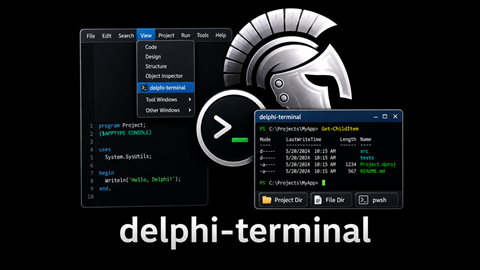




Dockable terminal panel for RAD Studio. Run CMD, PowerShell 7 (pwsh), and legacy PowerShell sessions directly inside the IDE.
- Three shell tabs -- CMD, pwsh, and PowerShell in a single panel
- ANSI color rendering -- SGR escape sequences rendered with the Windows Terminal Campbell palette via TRichEdit
- Command history -- Up/Down arrow keys recall previous commands
- Working directory shortcuts -- Project Dir and File Dir toolbar buttons resolve paths via ToolsAPI in the IDE (folder picker in the demo app.)
- Process exit detection -- shows a restart prompt when the shell
exits:
press Enter to restart - Saved commands -- store frequently used commands and recall them
instantly with a Ctrl+P command palette or the Commands toolbar button
- Add, edit, delete, and reorder commands via the editor dialog
- Each command has a name, shell type (Active / CMD / pwsh / PowerShell), command text, and optional working directory
- Variable expansion:
${ProjectDir},${ProjectFile},${BuildConfig},${Platform},${FileDir},${FilePath},${FileName}-- resolved at execution time from IDE context - Enter previews the command in the input field for editing; Ctrl+Enter runs immediately (or Ctrl+DblClick)
- Command list filtered by the active shell tab
- JSON bundle import/export for sharing command sets across machines
- Per-project commands -- place a
.delphi-terminal.jsonbundle file next to a.dprojto add project-specific commands that only appear when that project is active (format details)
- Keyboard shortcuts
- Ctrl+P -- open the saved-command palette
- Ctrl+Tab / Ctrl+Shift+Tab -- cycle through shell tabs
- Ctrl+1, Ctrl+2, Ctrl+3 -- jump to CMD, pwsh, or PowerShell tab
- Up / Down -- navigate command history
- IDE integration -- dockable form with persistent dock state,
Viewmenu item, and config screen inTools>Options>Third Party>delphi-terminal - Auto change-directory option when the active Project changes
- Configurable Font Name + Font Size used in console window
All core functionality lives in TframeCmdShell, a self-contained TFrame
that embeds a terminal panel with ANSI-capable TRichEdit output, command
input, and shell process management. Both the IDE plugin and the demo app
host this same frame.
Minimal BPL package that registers a dockable form within RAD Studio and hosts the shared frame. Contains mostly just IDE plumbing: menu registration via INTAServices, ToolsAPI path resolution, and dockable form lifecycle.
Standalone VCL application that hosts the shared frame in a tabbed form. Useful for debugging the plugin.
DUnitX test project covering shell process management, ANSI parsing, and command history.
- A relatively recent version of RAD Studio
- You should remove {$LIBSUFFIX AUTO} for older versions.
- Plugin might otherwise be compatible back to XE3 (TStringHelper.contains) but old versions are untested.
Optional
- Defaults to
Cascadia Monofont (ships with Windows Terminal) - PowerShell 7+ (
pwsh.exe) for the pwsh tab
- Open
projects/ide-plugin/Delphi.Terminal.Plugin.dpkin RAD Studio - Right-click the project in Project Manager > Install
- Access via View > delphi-terminal
NOTE: LIBSUFFIX 'AUTO' was used to add automatic version suffix
to the BPL. To support older versions this was wrapped in a $IFDEF test.
Tweaking a DPK is fragile and this LIBSUFFIX AUTO option was also a little
fragile when first introduced in 10.4. Opening the .DPK and building/installing
the package was verified back to XE6 but there may be lingering side effects,
especially for older versions. Specifically - to keep the single DPK approach,
to install the package into multiple older copies of RAD Studio on the same machine
you will have to manage the BPL suffix yourself.
After installing, use the View menu and select delphi-terminal
Dock the form as desired and optionally save Desktop setting.


This tool is part of the Continuous-Delphi ecosystem, dedicated to the long-term success of Delphi applications.

Built with Delphi